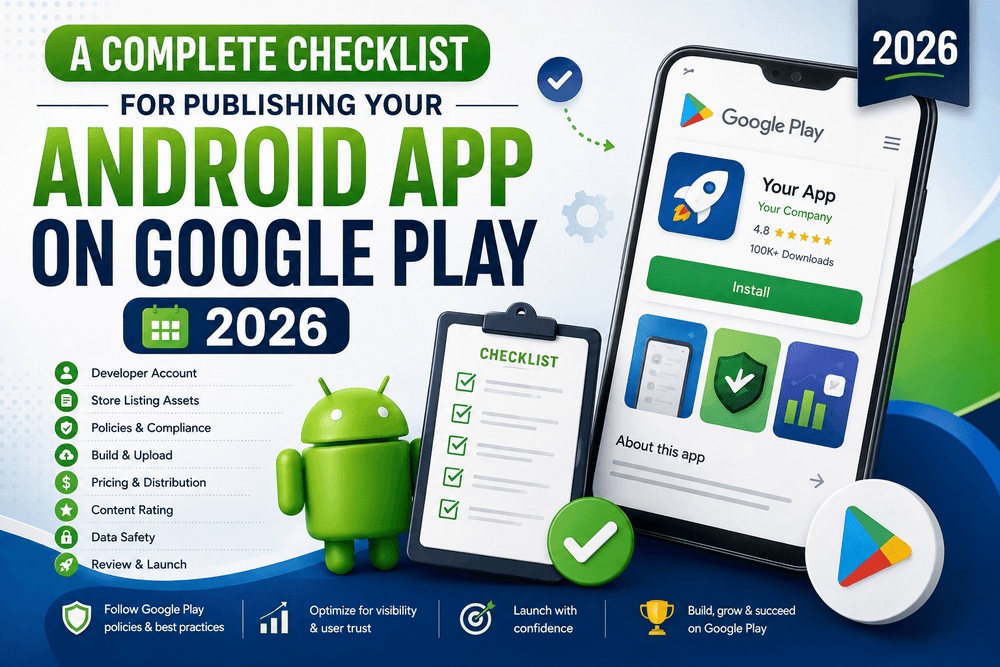
A Complete Checklist for Publishing Your Android App on Google Play 2026
Publishing an Android application on Google Play is an exciting milestone, but getting an app ready for release involves much more than uploading an APK and pressing a button.
Before your application reaches users, you need to review its functionality, security, privacy, store listing, technical configuration, testing, and compliance with Google Play policies. A small mistake—such as an incorrect privacy declaration, an improperly configured app bundle, misleading store information, or a missing testing requirement—can delay your launch.
This Android app publishing checklist provides a practical roadmap for developers preparing to publish an application on Google Play. It covers the most important steps from final development and testing to creating your Google Play listing, configuring the release, and monitoring the application after launch.
Because Google Play requirements can change, developers should always verify the latest official requirements before submitting an application. The official Android and Google Play documentation should be treated as the final authority for release requirements.
1. Complete Your Final Development Review
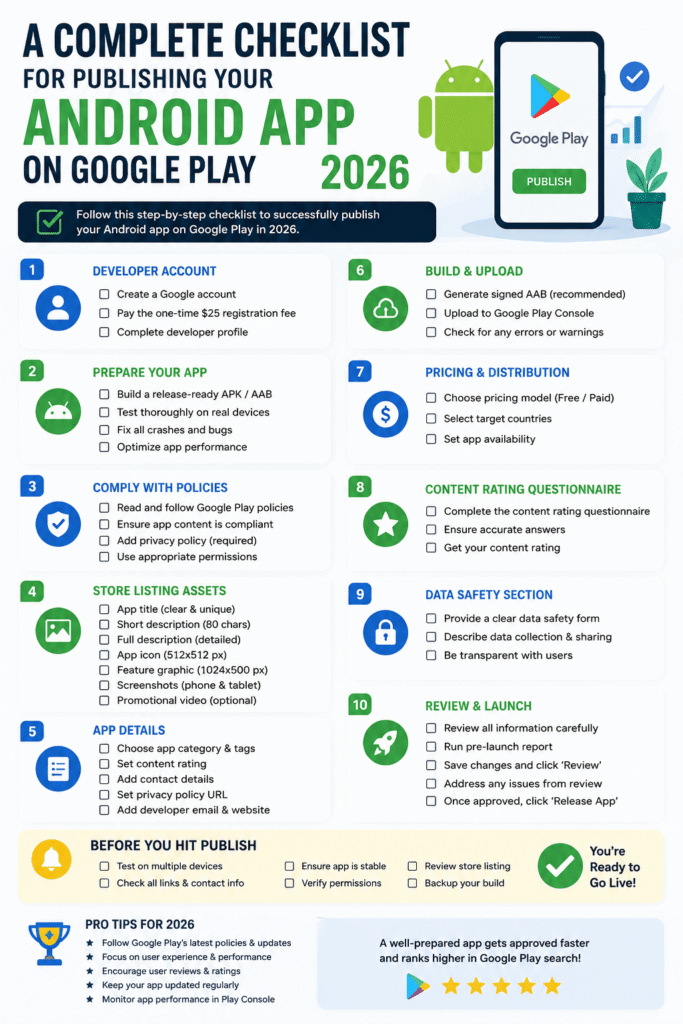
Before thinking about the Google Play listing, make sure the application itself is ready.
Start with a final technical review of your Android project.
Check:
- Application name
- Package name
- Version name
- Version code
- App icon
- Launch screen
- Application permissions
- API configuration
- Network communication
- Database behavior
- Error handling
- Offline behavior
- Authentication
- Notifications
- Deep links
- Accessibility
- Localization
Remove unnecessary experimental code, unused features, test screens, sample accounts, debug menus, and development endpoints.
A production application should not accidentally communicate with a development server or display debugging information to users.
2. Build a Release Version
Never publish your normal debug build.
Create a properly configured release build and verify that the application behaves correctly after release optimization.
Your release configuration should be reviewed for:
- Release signing
- Build configuration
- ProGuard or R8 rules
- API endpoints
- Logging
- Analytics configuration
- Crash reporting
- Feature flags
- Environment variables
- Third-party SDKs
If you use code shrinking or obfuscation, test the final release build thoroughly.
Some applications work perfectly in debug mode but fail after R8 optimization because classes, methods, or resources required at runtime were incorrectly removed.
3. Use Android App Bundle
For new Google Play applications, the preferred publishing format is the Android App Bundle (AAB).
An Android App Bundle allows Google Play to generate optimized APKs for individual devices and configurations.
Instead of building one large APK containing everything, developers upload the bundle and Google Play handles optimized delivery.
A typical Android Studio release process allows you to generate a signed bundle through the build tools.
For example, your Gradle configuration may contain:
android {
    buildTypes {
        release {
            isMinifyEnabled = true
        }
    }
}
The exact configuration depends on your project.
Google’s official documentation explains that Android App Bundles are the publishing format used by Google Play for modern applications and support optimized APK delivery. (developer.android.com)
4. Check Your Target API Requirements
One of the most important technical requirements is your application’s target API level.
Google Play periodically updates its target API requirements to ensure that applications take advantage of newer Android security, privacy, and platform behavior.
Before publishing, check the current Google Play target API requirements and make sure your application meets them.
Do not rely on an old tutorial because target API requirements can change over time.
Google maintains an official page explaining the current target API level requirements for Google Play applications. (developer.android.com)
A useful pre-release question is:
Is my application’s target SDK supported by Google Play for the type of release I am submitting?
If the answer is unclear, verify it in the official documentation before uploading the app.
5. Verify Your App Signing Configuration
App signing is a critical part of Android application distribution.
Google Play uses Play App Signing to securely manage signing keys for applications distributed through Google Play.
Developers should understand the difference between:
- Upload key
- App signing key
- Signed Android App Bundle
- Google Play App Signing
Your upload key is used to authenticate uploads to Google Play, while Google Play can manage the application signing key used to distribute the application.
Google recommends enrolling applications in Play App Signing, and the service provides protection for the signing key used to distribute the application. (support.google.com)
Before publishing, make sure your signing configuration is properly documented and securely backed up.
Never publish or share private signing keys publicly.
6. Test the Application on Real Devices
Emulators are useful, but they should not be your only testing environment.
A release candidate should be tested on physical Android devices representing the audience you expect to serve.
Test different:
- Android versions
- Screen sizes
- RAM configurations
- CPU architectures
- Network conditions
- Battery states
- Manufacturer devices
Pay particular attention to:
- App startup
- Navigation
- Permissions
- Login
- Notifications
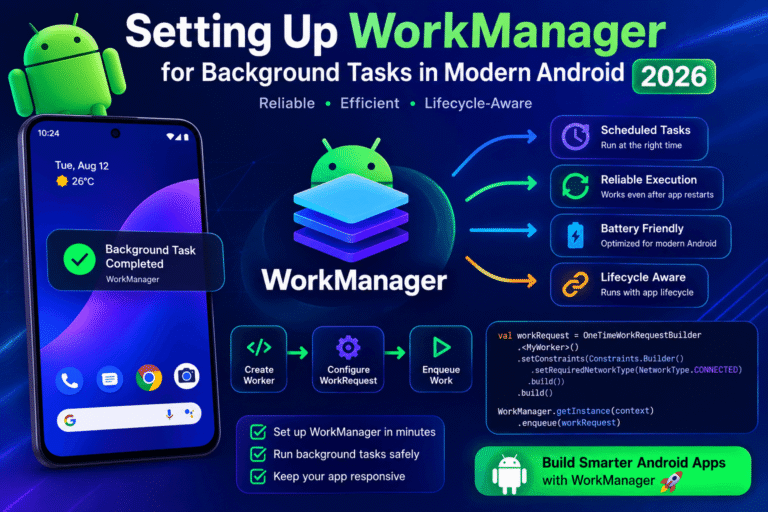
- Background tasks
- Camera features
- File uploads
- Downloads
- Deep links
- Rotation
- Configuration changes
Try the application as if you were a new user who has never seen the interface before.
This often reveals problems that developers overlook because they already know how the application works.
7. Test the Complete User Journey
Functional testing should go beyond individual features.
Test the complete user journey:
- Install the application.
- Open it for the first time.
- Grant or deny permissions.
- Create an account if required.
- Sign in.
- Use the main features.
- Close the application.
- Reopen it.
- Disconnect the network.
- Reconnect the network.
- Update the application.
- Sign out.
- Delete the application.
- Install it again.
Think about failure scenarios as well as successful ones.
What happens if the server is unavailable?
What happens if the user denies a permission?
What happens if the device runs out of storage?
What happens if the user receives a phone call during an important operation?
Reliable applications are designed around these real-world situations.
8. Review Privacy and Data Collection
Privacy is one of the most important parts of publishing an Android application.
Before submission, identify every type of user information your application collects, processes, or shares.
Examples include:
- Email addresses
- Names
- Location
- Device identifiers
- Usage information
- Photos
- Contacts
- Financial information
- Authentication data
- Advertising identifiers
Do not guess what your application collects.
Review your own code and every third-party SDK integrated into the application.
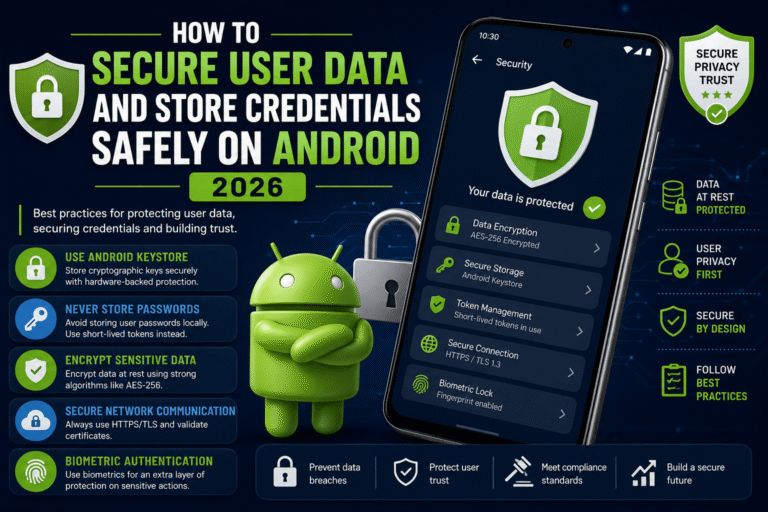
Analytics, advertising, authentication, crash-reporting, and social SDKs may collect information independently of your application’s main features.
Google Play requires developers to provide accurate information about data collection and sharing through the Data safety section. (support.google.com)
The information submitted to Google Play should accurately reflect your application’s actual behavior.
9. Prepare a Privacy Policy
If your application collects or handles personal or sensitive user information, a clear privacy policy may be required.
A privacy policy should explain relevant information such as:
- What data is collected
- Why the data is collected
- How data is used
- Whether information is shared
- How users can request information or deletion where applicable
- How users can contact the developer
Do not copy a random privacy policy from another application.
Your privacy policy should accurately describe your own application and services.
Google Play’s User Data policy provides official requirements concerning user data, privacy disclosures, secure handling, and privacy policy obligations. (support.google.com)
10. Complete the Data Safety Form Carefully
The Data safety section is not simply a marketing field.
It is a declaration about your application’s data practices.
You should determine:
- What data is collected
- Whether collection is optional or required
- Whether data is shared
- Why the data is collected
- Whether data is encrypted during transmission
- Whether users can request deletion
- Whether certain information is handled by third-party services
If your application uses SDKs, review their data practices as well.
Google explains that developers are responsible for providing complete and accurate declarations in the Data safety section. (support.google.com)
An inaccurate declaration can create compliance problems even if the application itself appears technically functional.
11. Review Permissions
Only request permissions that your application genuinely needs.
For example, an application that displays weather information probably does not need access to contacts.
Unnecessary permissions can:
- Reduce user trust
- Increase privacy concerns
- Complicate policy compliance
- Create additional security risks
Review every permission in your merged Android manifest.
Pay special attention to sensitive permissions involving:
- Location
- Contacts
- Camera
- Microphone
- SMS
- Phone calls
- Photos and videos
- Files
- Health information
Google Play has additional policy requirements for certain sensitive permissions and APIs. (support.google.com)
If a permission is not essential, consider removing it.
12. Review Your Advertising SDKs
If your application displays advertisements, review the advertising SDK configuration carefully.
Check:
- SDK version
- Consent requirements
- Data collection
- Personalized advertising behavior
- Child-directed settings
- Ad placement
- Test advertisements
- Privacy disclosures
Never click your own production advertisements to generate revenue.
During development, use the test-ad configuration provided by your advertising provider.
Also ensure that advertisements do not interfere with navigation, disguise themselves as system notifications, or mislead users.
Google Play’s advertising and monetization policies should be reviewed before publishing. (support.google.com)
13. Make Your Store Listing Professional
Your Google Play listing is often the first interaction a potential user has with your application.
Prepare high-quality:
- App title
- Short description
- Full description
- App icon
- Screenshots
- Feature graphic where applicable
- Promotional content
- Category
- Tags
- Contact information
Your store listing should accurately represent what the application actually does.
Avoid exaggerated claims such as:
“The world’s #1 app”
unless you can substantiate the claim and it complies with Google Play’s policies.
Do not use misleading screenshots that show features unavailable in the actual application.
Google’s metadata policy requires developers to provide accurate, clear, and relevant store-listing information. (support.google.com)
14. Optimize Your Google Play Description for SEO
Google Play optimization is different from traditional website SEO, but keyword relevance still matters.
Write naturally about the application’s main functionality.
For example, if you are publishing a task-management application, relevant phrases could include:
- Android task manager
- productivity app
- daily task planner
- to-do list
- task organization
Do not fill the description with repetitive keywords.
Keyword stuffing makes the text difficult to read and may create policy problems.
A better strategy is to explain:
- What problem the app solves
- Who it is designed for
- Its main features
- What makes it useful
- How users can get started
The store description should primarily help real users understand the product.
15. Check App Content Declarations
Google Play Console asks developers to provide information about their application.
Depending on your app, you may need to complete declarations related to:
- Target audience
- Content rating
- Data safety
- Ads
- App access
- Financial features
- Health-related functionality
- Government-related services
- Sensitive permissions
- Other policy-specific categories
Answer these questions accurately.
If your application requires a login, provide the information necessary for Google Play reviewers to access and test relevant functionality when requested.
Google provides an official overview of the information developers may need to provide during app setup and publishing. (support.google.com)
16. Complete the Content Rating Questionnaire
Google Play uses a content-rating system to help users understand the nature of an application.
Developers need to provide accurate information about the application’s content.
The rating questionnaire may consider factors such as:
- Violence
- Sexual content
- Language
- Gambling
- User-generated content
- Other potentially sensitive material
Answer based on the actual application rather than choosing a rating that you think will make the app more attractive.
Incorrect content information can create compliance issues.
17. Test In-App Purchases and Subscriptions
If your application includes paid features, subscriptions, or in-app purchases, test the complete purchase experience.
Check:
- Product configuration
- Prices
- Subscription periods
- Purchase flow
- Restore behavior
- Cancellation handling
- Failed payments
- Entitlements
- Server-side validation
- User access after purchase
Do not assume that a successful test purchase means the entire billing system is ready for production.
Test cases where payment fails, a subscription expires, or a user changes devices.
Google Play Billing documentation should be consulted for current implementation and policy requirements. (developer.android.com)
18. Review Third-Party Libraries
Your application may contain dozens of dependencies.
Before release, review them.
Check:
- Library versions
- Known security vulnerabilities
- Licensing
- Privacy behavior
- Permissions
- Network access
- Maintenance status
- Compatibility with your target Android version
Remove dependencies you no longer need.
A smaller dependency footprint can make an application easier to maintain and audit.
19. Check Accessibility
Accessibility should be part of the release checklist rather than something added later.
Test whether users can:
- Navigate with TalkBack
- Understand buttons without visual context
- Read text comfortably
- Use adequate touch targets
- Distinguish important interface elements
- Navigate forms correctly
Use meaningful content descriptions for appropriate visual elements and make sure important functionality does not depend exclusively on color.
An accessible application can serve a broader audience and generally provides a better user experience.
20. Test Performance and Battery Usage
Before publishing, monitor:
- Startup time
- Memory consumption
- CPU usage
- Network usage
- Battery consumption
- Background activity
- Database performance
- Large image handling
A technically correct application can still receive poor reviews if it drains the battery or feels slow.
Use Android Studio’s profiling tools to identify performance problems before release.
Pay particular attention to background services, unnecessary polling, large downloads, and inefficient database operations.
21. Run a Security Review
Security testing should happen before publishing, not after receiving your first vulnerability report.
Review:
- Authentication
- Authorization
- Token storage
- Encryption
- Network security
- WebViews
- Deep links
- Exported components
- Intents
- Logging
- Local databases
- Backup behavior
- API keys
- Third-party SDKs
Never assume that an application is secure simply because it uses HTTPS.
Modern Android security requires a broader approach that considers the entire application architecture.
The Android security documentation provides practical guidance for protecting applications, data, permissions, and network communication. (developer.android.com)
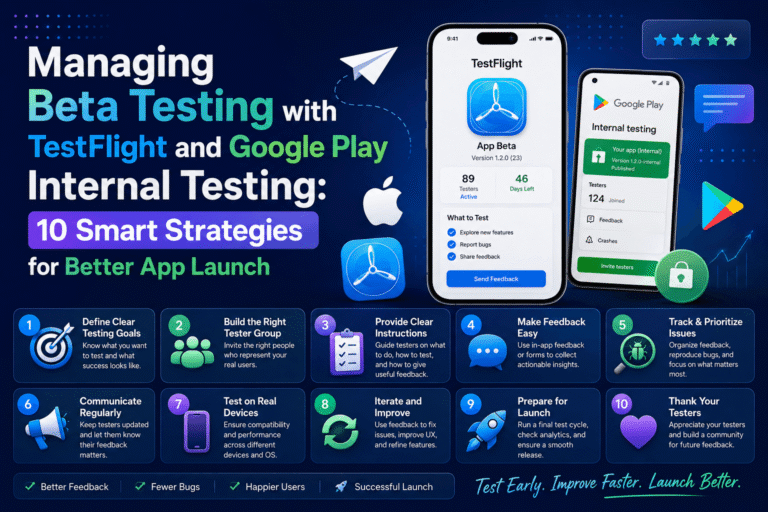
22. Use Internal or Closed Testing
Do not necessarily make your first production build available to everyone immediately.
Google Play provides testing tracks that can help developers distribute applications to selected testers before public release.
You can use testing to discover:
- Crashes
- Device-specific bugs
- Installation problems
- Login failures
- Performance issues
- UI problems
- Incorrect permissions
- Broken purchases
- Notification issues
Google Play’s testing tracks are an important part of the release process and can help developers validate an application before a wider launch. (support.google.com)
23. Prepare Your Production Release
Once testing is complete, prepare the production release in Google Play Console.
Before submitting, verify:
- Correct AAB uploaded
- Correct version code
- Correct version name
- Release notes prepared
- Store listing completed
- Data safety completed
- Privacy policy added where required
- Content rating completed
- Target audience configured
- App access information supplied
- Pricing and distribution configured
- Countries selected
- Review requirements satisfied
Then carefully review the release before submitting it for Google Play review.
24. Do Not Stop After Publication
Publishing the application is not the end of the development process.
After launch, monitor:
- Crash reports
- ANRs
- User reviews
- Ratings
- Performance
- Battery usage
- Server errors
- Authentication failures
- Security reports
- Uninstall trends
Google Play provides tools for monitoring application quality and user feedback.
A successful Android application is continuously maintained.
If users report a serious crash affecting a particular Android version or device manufacturer, investigate quickly and release a fix when necessary.
Complete Google Play Publishing Checklist
Use this final checklist before submitting your Android application:
- Release build tested
- Android App Bundle generated
- Target API requirements checked
- App signing configured
- Upload key securely stored
- Real-device testing completed
- Major user journeys tested
- Offline and poor-network behavior tested
- Permissions reviewed
- Privacy policy prepared if required
- Data safety information completed accurately
- Content rating completed
- Target audience configured
- App access instructions provided if required
- Store title reviewed
- Short description reviewed
- Full description reviewed
- Screenshots prepared
- App icon finalized
- Ads and monetization reviewed
- In-app purchases tested
- Third-party SDKs reviewed
- Security review completed
- Accessibility tested
- Performance tested
- Crash monitoring configured
- Internal or closed testing completed
- Production release reviewed
- Post-launch monitoring plan prepared
Final Thoughts
Publishing an Android application on Google Play is a process rather than a single upload.
A successful release requires technical preparation, careful testing, privacy compliance, security reviews, accurate store information, and continuous monitoring after launch.
The most important part of this Google Play publishing checklist is accuracy. Do not provide information simply because you think it will help the application pass review. Your Data safety information, privacy disclosures, store description, permissions, content rating, and app behavior should all match the actual product.
Before every release, check the latest official Google Play and Android documentation because technical and policy requirements can change.
If you combine thorough testing with secure development practices, an accurate store listing, and careful policy compliance, you can greatly improve your chances of delivering a smooth Google Play launch and building long-term trust with your users.
Frequently Asked Questions
What do I need to publish an Android app on Google Play?
You generally need a Google Play developer account, a properly configured release build, an Android App Bundle, a completed store listing, required policy declarations, accurate app information, and compliance with current Google Play requirements.
Should I upload an APK or AAB to Google Play?
For modern Google Play publishing, developers generally use the Android App Bundle format. Google Play uses the bundle to generate optimized APKs for supported devices. (developer.android.com)
How important is the target SDK for Google Play?
It is very important. Google Play periodically updates target API requirements, and applications must meet the applicable requirements for publication and updates. Always verify the latest requirements before submitting your release. (developer.android.com)
Do I need a privacy policy for my Android app?
Privacy-policy requirements depend on your application and the type of user data it handles, but Google Play has specific user-data and privacy requirements. Developers should review the current User Data policy and provide accurate disclosures. (support.google.com)
Can I publish an app without testing it?
You technically may be able to submit an application without extensive testing, but doing so is risky. Internal, closed, or other testing methods can reveal crashes, compatibility problems, and policy-related issues before a public launch.
How can I improve my Google Play listing?
Use a clear application title, useful descriptions, relevant screenshots, accurate feature claims, and natural keyword usage. Focus on explaining the application’s value rather than stuffing the description with repeated keywords.
Trusted Sources
- Android Developers — Build and Publish Your App: Official Android documentation for preparing applications for release. (developer.android.com)
- Android Developers — Target API Level Requirements: Current technical requirements related to Google Play target API levels. (developer.android.com)
- Google Play Console Help — Data Safety: Official guidance for completing the Data safety section. (support.google.com)
- Google Play Console Help — User Data Policy: Official requirements for user data and privacy. (support.google.com)
- Google Play Console Help — Testing Requirements: Official documentation about testing tracks and app testing. (support.google.com)
- Google Play Console Help — App Signing: Official documentation about Play App Signing and upload keys. (support.google.com)
About The Author