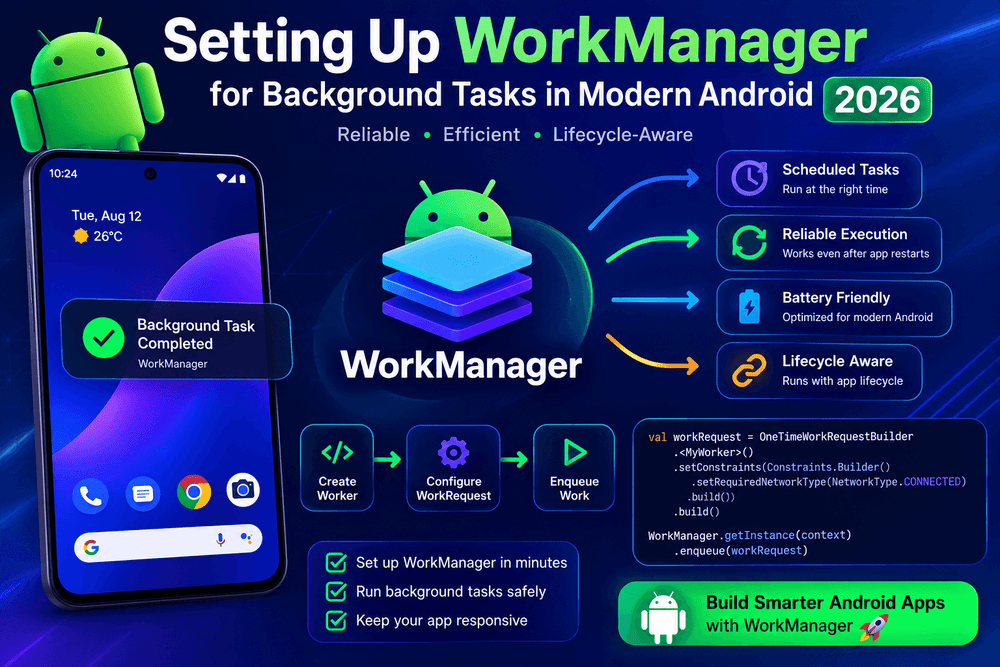
Setting Up WorkManager for Background Tasks in Modern Android 2026
Modern Android applications often need to perform tasks that should continue even when the user leaves the app, closes a screen, or restarts the device. Examples include syncing data with a server, uploading files, processing images, refreshing local content, and sending logs to a backend service.
Managing these operations directly with threads, services, or custom scheduling logic can quickly become complicated because Android places strict limits on background execution to protect battery life and device performance. This is where Android WorkManager becomes especially useful.
WorkManager is the recommended Jetpack solution for persistent background work on Android. It provides a reliable way to schedule tasks while respecting system conditions such as battery level, network availability, and device power-saving modes. According to the official Android documentation, WorkManager is designed for work that should remain reliable even if the application exits or the device restarts.
In this guide, you will learn how to set up WorkManager in a modern Android project, create background workers, add constraints, handle retries, schedule periodic tasks, and apply practical best practices.
What Is Android WorkManager?
WorkManager is part of Android Jetpack and provides APIs for scheduling asynchronous and deferrable background tasks that need reliable execution.
Unlike a simple Kotlin coroutine, WorkManager can persist scheduled work. A coroutine is excellent for asynchronous operations while your application process is alive, but it normally stops when that process is terminated. WorkManager is intended for situations where the task needs to survive application exits and device restarts.
Common WorkManager use cases include:
- Synchronizing application data with a server
- Uploading files in the background
- Downloading updated content
- Backing up local data
- Processing images
- Sending analytics or logs
- Performing periodic database synchronization
- Cleaning or maintaining local application data
However, WorkManager is not a universal solution for every background task. If your application needs an exact alarm, an immediately visible operation, or another specialized behavior, Android provides other APIs that may be more appropriate.
Why Use WorkManager for Background Tasks?
Android has become increasingly strict about background execution. These restrictions help reduce unnecessary battery consumption and prevent applications from consuming system resources when users are not actively interacting with them.
WorkManager handles much of this complexity for developers.
Its major advantages include:
Persistent Scheduling
WorkManager stores scheduled work and can reschedule it when necessary. Android documentation notes that scheduled work persists across application restarts and device reboots.
Work Constraints
You can tell WorkManager when a task should run. For example, an upload could require an active network connection or charging power.
Automatic Retry
Temporary failures do not necessarily mean that your task should permanently fail. WorkManager supports retry policies and exponential backoff.
Work Chaining
Multiple tasks can be connected so that one operation starts after another completes. You can also execute independent work in parallel.
Battery Awareness
WorkManager works with Android’s scheduling and power-management systems rather than attempting to keep your application constantly running. This approach helps applications behave efficiently on modern Android devices.
Adding WorkManager to Your Android Project
For a modern Kotlin-based Android application, add the WorkManager dependency to your app-level Gradle file.
As of July 2026, the latest stable WorkManager release listed by Android Developers is 2.11.2. A newer 2.12 preview release is also available, but production applications should generally prefer a stable version unless there is a specific reason to use a preview release.
For example:
dependencies {
    implementation("androidx.work:work-runtime-ktx:2.11.2")
}
If you are using a current Kotlin and Android Gradle configuration, make sure your project satisfies the requirements of the selected WorkManager release. The official release documentation currently lists compileSdk 33 or higher as a requirement.
After adding the dependency, synchronize your project.
Creating Your First Worker
The basic unit of execution in WorkManager is a Worker.
A Worker defines what your application should actually do in the background. With Kotlin, you can create a class that extends CoroutineWorker, which works particularly well with modern Kotlin applications.
Here is a simple example:
class DataSyncWorker(
    appContext: Context,
    workerParams: WorkerParameters
) : CoroutineWorker(appContext, workerParams) {

    override suspend fun doWork(): Result {
        return try {
            syncData()
            Result.success()
        } catch (exception: Exception) {
            Result.retry()
        }
    }

    private suspend fun syncData() {
        // Perform your background operation here
    }
}
The doWork() function contains the operation that WorkManager should execute.
There are three important results:
Result.success()indicates that the operation completed successfully.Result.failure()indicates that the operation failed permanently.Result.retry()tells WorkManager that the operation should be attempted again according to its retry policy.
The important principle is to distinguish between temporary failures and permanent failures. For example, a temporary network problem may justify Result.retry(), while invalid input that cannot succeed after another attempt may be better represented by Result.failure().
Creating a WorkRequest
Defining a Worker does not automatically execute it. You must create a WorkRequest and submit it to WorkManager.
For one-time background work, use OneTimeWorkRequest:
val syncRequest =
    OneTimeWorkRequestBuilder<DataSyncWorker>()
        .build()

WorkManager
    .getInstance(applicationContext)
    .enqueue(syncRequest)
Once enqueued, WorkManager manages the task according to its scheduling rules and constraints.
The exact execution time is intentionally controlled by the system. WorkManager is designed to provide reliable execution while allowing Android to optimize resource usage.
This distinction is important: WorkManager does not mean “run this task at exactly this second.” It means “make sure this background work is scheduled and executed when the system determines that the required conditions are appropriate.”
Adding Network and Battery Constraints
One of the strongest features of WorkManager is its ability to define conditions for background execution.
Suppose your application needs to upload a large file. Running the upload on a limited or metered connection may not provide the best user experience.
You can define a network constraint:
val constraints = Constraints.Builder()
    .setRequiredNetworkType(NetworkType.CONNECTED)
    .build()

val uploadRequest =
    OneTimeWorkRequestBuilder<DataSyncWorker>()
        .setConstraints(constraints)
        .build()

WorkManager
    .getInstance(applicationContext)
    .enqueue(uploadRequest)
You can also create conditions related to charging or battery state.
For example:
val constraints = Constraints.Builder()
    .setRequiresCharging(true)
    .setRequiredNetworkType(NetworkType.UNMETERED)
    .build()
This tells WorkManager that the task should wait until the device is charging and has an unmetered network connection.
Choosing appropriate constraints is an important part of Android background task optimization because unnecessary work can consume battery, network data, and CPU resources. Android recommends selecting optimal constraints and combining tasks where appropriate.
Scheduling Periodic Background Work
Some applications need recurring operations rather than a single task.
For example, a news application might periodically synchronize content with its backend.
You can use PeriodicWorkRequest:
val periodicRequest =
    PeriodicWorkRequestBuilder<DataSyncWorker>(
        24, TimeUnit.HOURS
    ).build()

WorkManager
    .getInstance(applicationContext)
    .enqueue(periodicRequest)
Periodic WorkManager tasks are useful for operations such as:
- Daily data synchronization
- Regular cache maintenance
- Periodic content updates
- Background database cleanup
Keep in mind that periodic work is intentionally flexible. Android controls the precise execution timing to optimize system resources. Therefore, WorkManager should not be used when your application requires exact-to-the-second scheduling.
Using Unique Work to Avoid Duplicate Tasks
A common problem in background processing is accidentally scheduling the same operation multiple times.
Imagine a synchronization operation triggered from several screens. If every screen independently calls enqueue(), your application could create multiple synchronization requests.
WorkManager provides unique work to help solve this problem.
For example:
WorkManager.getInstance(context)
    .enqueueUniqueWork(
        "data_sync",
        ExistingWorkPolicy.KEEP,
        syncRequest
    )
With ExistingWorkPolicy.KEEP, WorkManager keeps the existing operation instead of creating another one when the same unique work name is already active.
This approach is especially useful for synchronization, uploads, cleanup operations, and other tasks where duplicate execution could waste resources.
Handling Failed Background Work
Network requests can fail. Servers can become unavailable. A device can lose connectivity. Good background task design should expect these situations.
WorkManager supports retry policies that can include exponential backoff.
For example:
val request =
    OneTimeWorkRequestBuilder<DataSyncWorker>()
        .setBackoffCriteria(
            BackoffPolicy.EXPONENTIAL,
            10,
            TimeUnit.SECONDS
        )
        .build()
When your Worker returns Result.retry(), WorkManager can reschedule the task using the configured backoff policy.
This is better than immediately retrying a failed network request in a tight loop. Repeated immediate retries can increase battery usage and place unnecessary pressure on the server.
Chaining Multiple Background Tasks
Real-world applications often need more than one background operation.
Consider a workflow like:
- Download data.
- Process the downloaded data.
- Save it to a local database.
- Update the application cache.
WorkManager can chain these operations.
For example:
val downloadWork =
    OneTimeWorkRequestBuilder<DownloadWorker>()
        .build()

val processWork =
    OneTimeWorkRequestBuilder<ProcessWorker>()
        .build()

val saveWork =
    OneTimeWorkRequestBuilder<SaveWorker>()
        .build()

WorkManager.getInstance(context)
    .beginWith(downloadWork)
    .then(processWork)
    .then(saveWork)
    .enqueue()
This makes complex background workflows easier to understand and maintain.
WorkManager also supports parallel work when independent tasks do not need to wait for one another.
WorkManager vs Kotlin Coroutines
Kotlin coroutines and WorkManager are not competitors.
They solve different problems.
Use Kotlin coroutines when you need asynchronous work that does not have to survive the application process being terminated.
Use WorkManager when the task needs persistent background scheduling and reliable execution.
In fact, they can work together. A CoroutineWorker allows you to use suspending Kotlin functions inside a WorkManager task. Android’s documentation explicitly notes that coroutines and WorkManager can be used together.
This combination is particularly useful for modern Android applications built with Kotlin.
WorkManager vs Foreground Services
Foreground services are designed for tasks that need to remain actively running and visible to the user through a persistent notification.
Examples can include certain navigation, media, or ongoing device operations.
WorkManager is generally better for persistent background work that can be deferred.
Android’s current background-work guidance distinguishes WorkManager, foreground services, alarms, and other APIs based on the requirements of the task.
Choosing the correct API is important because forcing every task into a foreground service can negatively affect battery life and user experience.
Expedited Work for Urgent Tasks
Some background operations are more urgent than ordinary deferrable work.
WorkManager supports expedited work, which is intended for important tasks that should begin as soon as practical and can complete within a relatively short period.
For example:
val request =
    OneTimeWorkRequestBuilder<DataSyncWorker>()
        .setExpedited(OutOfQuotaPolicy.RUN_AS_NON_EXPEDITED_WORK_REQUEST)
        .build()
Expedited work should not be treated as a replacement for normal scheduling. It is intended for work that is important to the user and needs higher execution priority. Android specifically recommends using expedited work for appropriate immediate background operations.
Testing WorkManager
Background code can be difficult to test if scheduling and business logic are tightly coupled.
Android provides WorkManager testing support that can help developers verify Worker behavior and scheduling logic.
The official Android training resources also include WorkManager exercises covering Worker creation, constraints, and the Background Task Inspector.
When testing a Worker, focus on important scenarios such as:
- Successful execution
- Temporary network failures
- Permanent failures
- Retry behavior
- Constraint changes
- Input and output data
- Duplicate scheduling
- Chained work
Testing these cases before releasing an application can prevent difficult-to-reproduce background execution bugs.
Best Practices for Android WorkManager
To build reliable and battery-friendly applications, consider these practices:
Keep Workers Focused
A Worker should have a clear responsibility. Avoid creating one enormous Worker that performs unrelated operations.
Respect Constraints
If an operation requires Wi-Fi, charging, or another condition, express that requirement through WorkManager instead of repeatedly checking conditions manually.
Design for Failure
Assume that networks disappear, processes are terminated, and servers become temporarily unavailable.
Avoid Duplicate Work
Use unique work when the same operation should not run multiple times simultaneously.
Use Retries Carefully
Retry temporary problems, but do not endlessly retry permanent failures.
Avoid Exact-Time Expectations
WorkManager is designed for reliable scheduling, not exact alarm-clock precision.
Optimize Battery Usage
Android’s power-management system can limit background execution. Efficient work scheduling helps your application behave better on a wide range of devices.
Common Mistakes to Avoid
One common mistake is using WorkManager for every background operation. The API is powerful, but the correct background API depends on the task.
Another mistake is assuming that calling enqueue() means the Worker starts immediately. WorkManager considers constraints, system scheduling, and resource availability before running work.
Developers should also avoid treating retries as a solution for every failure. A retry is useful for transient problems, but repeatedly retrying invalid data or authentication errors can create unnecessary work.
Finally, avoid ignoring Android’s battery and background-execution rules. Modern Android prioritizes efficient resource usage, and WorkManager is designed to cooperate with those system policies rather than bypass them.
Final Thoughts
Setting up WorkManager for background tasks in modern Android is an important skill for developers building reliable Kotlin applications. Instead of relying on fragile custom background threads or outdated scheduling techniques, WorkManager provides a structured approach to persistent background processing.
With Workers, WorkRequests, constraints, retries, unique work, periodic scheduling, and task chaining, developers can create background workflows that are reliable without unnecessarily consuming system resources.
The most important lesson is to choose WorkManager for the right kind of work: tasks that need reliable background execution but can generally be deferred according to system conditions. For asynchronous operations that do not need persistence, coroutines may be enough. For exact alarms or continuously visible operations, Android provides other specialized APIs.
As Android continues to evolve, understanding these distinctions is essential for creating applications that are responsive, battery-conscious, and compatible with modern platform behavior.
Frequently Asked Questions
Is WorkManager still recommended for Android background tasks?
Yes. Android’s current documentation recommends WorkManager as the primary solution for persistent background work that should remain reliable across application restarts and device reboots.
Can WorkManager run after the app is closed?
WorkManager is designed for persistent work that can continue to be scheduled even when the application’s visible UI is no longer active. The system manages the work according to its scheduling and resource policies.
Is WorkManager better than coroutines?
Neither is universally better. Coroutines are excellent for asynchronous work inside an active application process, while WorkManager is designed for persistent background work that should survive process termination.
Can WorkManager run tasks periodically?
Yes. PeriodicWorkRequest is designed for recurring background operations, although the exact execution time remains controlled by Android’s scheduling system.
What is the latest stable WorkManager version?
As of August 2026, Android’s official AndroidX release information lists WorkManager 2.11.2 as the stable release, while newer 2.12 builds are in preview channels. Always verify the official AndroidX release page before starting a new project or upgrading an existing application.
Trusted Sources
- Android Developers — Task Scheduling and WorkManager
- Android Developers — WorkManager Release Notes
- Android Developers — Background Work Overview
- Android Developers — Battery Optimization for Task Scheduling
About The Author