Setting Up Push Notifications for iOS and Android in React Native 2026
Push notifications are one of the most effective ways to keep mobile users engaged with an application. Whether you are building a messaging app, e-commerce platform, news application, booking system, or productivity tool, push notifications in React Native can help you deliver timely updates directly to users.
However, implementing React Native push notifications for both iOS and Android requires more than simply installing a package. Each platform has its own notification system, permissions, device-token requirements, and background behavior. A reliable implementation should also consider privacy, security, user experience, and notification performance.
In this guide, we will explain how to set up push notifications in React Native using Firebase Cloud Messaging (FCM), how iOS and Android differ, how to handle notification permissions, and how to test and troubleshoot your implementation.
What Are Push Notifications?
A push notification is a message sent from a server to a user’s mobile device. Unlike traditional in-app messages, push notifications can reach users even when the application is not actively open.
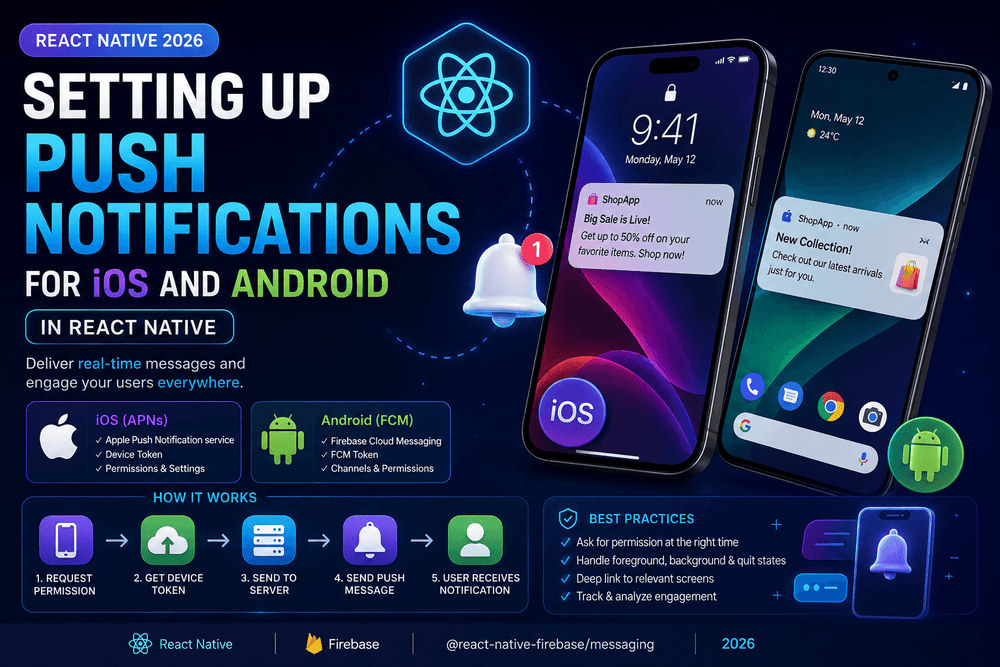
For a React Native application, the general architecture looks like this:
React Native App → Firebase Cloud Messaging → iOS/Android Device
On Android, Firebase Cloud Messaging can communicate directly with the device. On Apple platforms, Firebase Cloud Messaging works with Apple Push Notification service (APNs). Apple requires an app to register with APNs and obtain a device token before remote notifications can be delivered.
This makes FCM a practical solution for developers who want a unified approach to Android and iOS push notifications.
Why Use Firebase Cloud Messaging With React Native?
Firebase Cloud Messaging, commonly called FCM, provides infrastructure for sending messages to Android, iOS, and other supported platforms. Google provides dedicated setup and receiving-message documentation for both Apple platforms and Android.
For React Native developers, React Native Firebase provides a native integration with Firebase services. Its current messaging API includes methods for obtaining an FCM token, requesting permissions, registering devices, handling messages, and responding to token refreshes.
The main advantages include:
- Cross-platform notification support
- Device and topic-based messaging
- Integration with Firebase services
- Token management
- Foreground and background message handling
- Scalable notification infrastructure
- Support for notification and data payloads
Step 1: Create a Firebase Project
The first step in setting up React Native Firebase push notifications is creating a Firebase project.
Open the Firebase Console and create a project. After creating it, add your Android and iOS applications to the same Firebase project.
For Android, Firebase provides a google-services.json configuration file. For iOS, you will receive a GoogleService-Info.plist file.
Keep these files associated with the correct application identifiers. A common configuration mistake is using a Firebase configuration file that belongs to another package name or bundle identifier.
Firebase’s official documentation provides platform-specific setup guides and working examples for FCM.
Step 2: Install React Native Firebase Messaging
For a React Native project using the native Firebase integration, install the Firebase application package and the messaging module according to the current React Native Firebase installation documentation.
A typical installation begins with:
npm install @react-native-firebase/app
npm install @react-native-firebase/messaging
or:
yarn add @react-native-firebase/app @react-native-firebase/messaging
After installing native modules, rebuild the application rather than relying only on Metro’s JavaScript reload.
On iOS, native dependencies normally need to be installed through CocoaPods:
cd ios
pod install
cd ..
The exact installation requirements can change as React Native, Firebase, Xcode, and Android tooling evolve, so developers should always check the current React Native Firebase documentation before deploying a production application.
Step 3: Configure Android
Android requires Firebase configuration and the appropriate notification setup.
Place the Firebase Android configuration file in the appropriate application directory and make sure the Android application ID matches the application registered in Firebase.
Once Firebase Messaging is installed, your application can request its FCM registration token. This token identifies the app installation for messaging purposes.
A simplified React Native example is:
import messaging from '@react-native-firebase/messaging';

async function getDeviceToken() {
  const token = await messaging().getToken();

  console.log('FCM Token:', token);

  return token;
}
The token should normally be sent to your backend if your server needs to send notifications to individual users.
Remember that tokens can change. React Native Firebase exposes a token-refresh listener so applications can update the backend when a new token is generated.
Step 4: Configure Push Notifications on iOS
iOS requires additional configuration because remote notifications are managed through Apple’s APNs infrastructure.
In Xcode, enable the Push Notifications capability for your application. Apple explains that enabling this capability adds the required APNs entitlement to the project.
You also need to configure your Firebase project with the appropriate Apple notification credentials.
The application must request permission before displaying user-facing notifications. Apple’s notification framework requires authorization for alerts, sounds, or other user-visible interactions. Without authorization, remote notifications can be delivered silently rather than displayed to the user.
With React Native Firebase, permission handling can be implemented with the messaging API, although current React Native Firebase documentation recommends considering dedicated permission libraries for permission requests as APIs evolve.
For example:
import messaging from '@react-native-firebase/messaging';

async function requestNotificationPermission() {
  const authorizationStatus = await messaging().requestPermission();

  return authorizationStatus;
}
On iOS, testing push notifications should generally be performed on a physical device when you need a real APNs registration token. Current React Native Firebase documentation notes limitations around APNs registration on the ARM64 iOS Simulator.
Step 5: Get and Store the FCM Token
After the application has permission and messaging is configured, retrieve the FCM registration token.
const token = await messaging().getToken();
console.log(token);
If your application has user accounts, send the token securely to your backend and associate it with the appropriate account.
Do not assume that one user has only one token. A person may use the same account on multiple phones or tablets. Your backend should therefore be capable of managing multiple active device tokens.
Apple also warns developers not to permanently cache APNs device tokens locally because the token can change. The application should register for remote notifications and use the current token provided by the system.
Step 6: Handle Foreground Notifications
When your React Native application is open, you may want to process incoming messages inside JavaScript.
React Native Firebase provides an onMessage listener for messages received while the application is in the foreground.
useEffect(() => {
  const unsubscribe = messaging().onMessage(async remoteMessage => {
    console.log('Notification received:', remoteMessage);
  });

  return unsubscribe;
}, []);
What you do with the message depends on your application. You might display an in-app banner, update a conversation, refresh content, or show a local notification.
It is important to distinguish between receiving a push message and displaying a notification. A foreground message may require additional application logic if you want a visible notification experience.
Step 7: Handle Background and Terminated States
Push notification behavior changes depending on whether the app is open, in the background, or terminated.
Android’s Firebase documentation explains that notification messages received while an application is in the background can be delivered to the system notification tray. Messages containing both notification and data payloads have additional behavior regarding the notification and application intent.
This is why testing only the foreground state is not enough.
Your testing plan should include:
- App open
- App in background
- App completely closed
- Device locked
- Notification permission denied
- Network temporarily unavailable
- Multiple devices using the same account
A production-ready React Native notification system should be designed around all of these scenarios.
Notification Payloads: Notification vs Data
FCM messages can contain notification information, data, or both.
A notification payload is useful when you want the platform to handle much of the visible notification behavior.
A data payload is useful when the application needs to receive structured information and decide what to do with it.
For example:
{
  "data": {
    "type": "message",
    "conversationId": "12345"
  }
}
Your application can use values such as type or conversationId to determine which screen should open when the user interacts with a notification.
Avoid placing sensitive personal information directly inside notification payloads. Push messages should contain only the information necessary for the intended behavior.
Common React Native Push Notification Problems
Even when the JavaScript code looks correct, push notifications may fail because of native configuration.
Common problems include:
Incorrect Firebase Configuration
Make sure the Android package name and iOS bundle identifier correspond to the applications registered in Firebase.
Missing iOS Permission
If the user has denied notification permission, your application cannot simply assume that notifications will appear. Permission status should be checked and handled gracefully.
APNs Configuration Problems
On iOS, Firebase Cloud Messaging depends on APNs for delivery. Apple requires appropriate registration and authentication between the provider and APNs.
Testing Only on a Simulator
For reliable APNs token testing, use a physical iOS device. The current React Native Firebase reference specifically documents limitations for APNs registration on ARM64 iOS simulators.
Ignoring Token Refresh
A device’s FCM token can change. If your backend stores an outdated token, future notifications may fail. Listen for token changes and update your server accordingly.
Best Practices for React Native Push Notifications
A technically correct notification system is not automatically a good notification system.
Use push notifications carefully. Send messages when they provide real value rather than sending frequent promotional alerts.
Good practices include:
- Ask for notification permission at an appropriate moment.
- Explain why notifications are useful before showing the permission request.
- Give users meaningful notification controls.
- Keep notification titles short and informative.
- Avoid unnecessary notifications.
- Never expose sensitive information in notification text.
- Keep device tokens secure.
- Remove invalid or expired tokens from your backend.
- Test on real Android and iOS devices.
- Monitor delivery and engagement.
- Respect local privacy and data-protection requirements.
Push notifications should improve the user experience, not interrupt it.
Privacy and AdSense Considerations
If you publish tutorials about React Native push notifications on a website monetized with Google AdSense, the article should provide genuine educational value rather than being written primarily to manipulate search rankings.
Your website should also maintain a clear privacy policy. Google AdSense policies require publishers to disclose relevant data collection, sharing, and usage practices associated with Google products and technologies.
For mobile applications distributed through Google Play, developers should also provide accurate information about data collection and sharing. Google Play requires developers to maintain an accurate Data safety section and an accessible privacy policy.
This is particularly important when your application stores device identifiers, notification tokens, account information, analytics data, or other user-related information.
Final Thoughts
Setting up push notifications for iOS and Android in React Native requires coordination between your React Native code, Firebase Cloud Messaging, Android services, Apple’s APNs infrastructure, and your backend.
The basic process is straightforward: configure Firebase, install the messaging library, configure Android and iOS, request notification permissions, obtain the FCM token, send the token securely to your backend, and implement foreground and background message handling.
The more difficult part is making the system reliable. Device tokens can change, users can revoke permissions, background behavior differs between platforms, and APNs may throttle or delay delivery under certain conditions. Apple explicitly describes push delivery as a best-effort service, meaning developers should not treat every notification as guaranteed real-time delivery.
For that reason, successful React Native push notification implementation is not just about getting the first test notification to appear. It is about building a secure, respectful, and maintainable notification architecture that works consistently across Android and iOS.
Frequently Asked Questions
Can React Native support push notifications on both Android and iOS?
Yes. React Native can support push notifications on both platforms. Firebase Cloud Messaging is a common solution, while iOS delivery ultimately involves Apple’s APNs infrastructure.
Do I need Firebase for React Native push notifications?
No. Firebase is not the only possible solution, but FCM provides a convenient cross-platform messaging infrastructure and integrates well with React Native through native Firebase libraries.
Why are push notifications working on Android but not iOS?
The most common reason is incomplete iOS/APNs configuration, missing notification permission, incorrect Firebase configuration, or testing without a valid APNs registration token.
Can I test iOS push notifications on a simulator?
Simulator behavior has limitations, particularly around obtaining a real APNs token. For reliable end-to-end APNs testing, use a physical iOS device.
Do FCM tokens stay the same forever?
No. Your application should handle token refreshes and update the backend when a new token is generated.
Trusted Sources
For continued development, consult the official documentation from Firebase Cloud Messaging, Apple Developer Documentation, and React Native Firebase. These sources provide the most reliable information because React Native, Firebase, iOS, and Android APIs are continuously updated.
About The Author