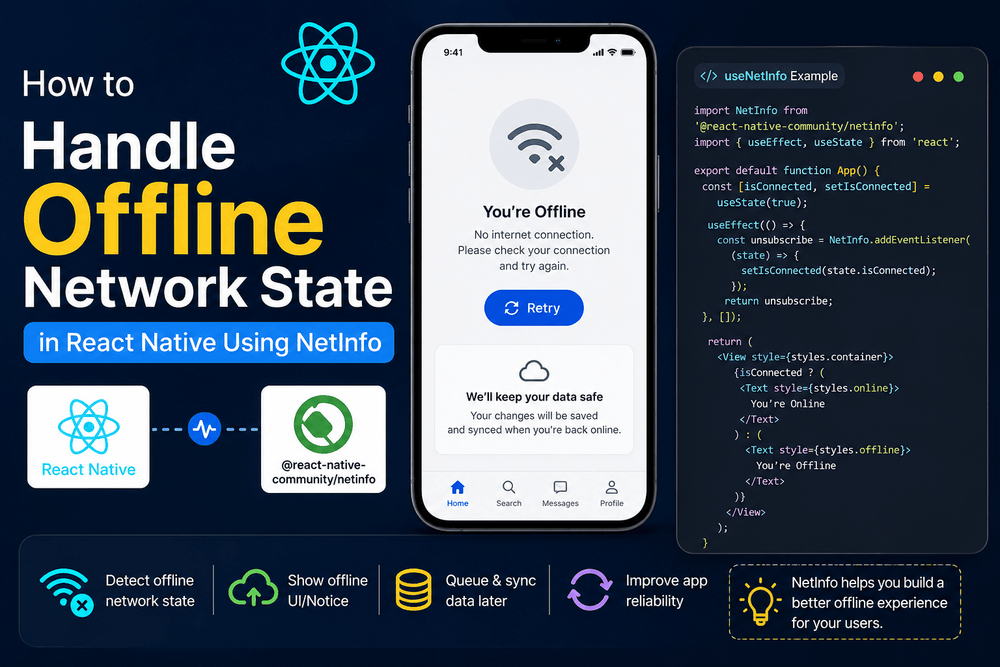
Learn how to handle offline network state in React Native using NetInfo.
Mobile apps are expected to work reliably even when the internet connection is unstable. A user may move between Wi-Fi and mobile data, enter an area with weak coverage, connect to a router without internet access, or temporarily lose connectivity altogether. If a React Native application does not handle these situations properly, requests can fail, screens may appear stuck, and users may lose confidence in the app.
Fortunately, handling network changes in React Native does not require building a connectivity system from scratch. The @react-native-community/netinfo package provides APIs for checking the current network state and listening for connectivity changes.
In this guide, you will learn how to use React Native NetInfo to detect online and offline states, distinguish between network connectivity and actual internet reachability, create a reusable custom hook, display an offline banner, cache data for offline use, and design a more reliable offline-first experience.
The examples use JavaScript and are designed to be easy to adapt to existing React Native applications.
What Is NetInfo in React Native?
NetInfo is a React Native community package that provides information about the device’s network connection.
The package can report information such as:
- Whether the device has a network connection
- Whether the internet is reachable
- The current connection type
- Changes between Wi-Fi, cellular, and other connection types
- Network state changes while the application is running
The package is installed separately from the React Native core:
npm install @react-native-community/netinfo
For Expo projects, you can install the compatible package with:
npx expo install @react-native-community/netinfo
Using NetInfo gives your application a consistent way to react to connectivity changes instead of assuming that a device is always online.
Why Offline Network Handling Matters in React Native
Network connectivity is not simply an online-or-offline switch.
For example, a phone can be connected to a Wi-Fi router while that router has no working internet connection. In another situation, the device may switch from Wi-Fi to cellular data while the application is making an API request.
This is why reliable applications should consider both:
isConnectedisInternetReachable
An application that only checks whether a device is connected to a network can incorrectly assume that an API request will succeed.
A better approach is to use network information as one part of your application’s error-handling and offline strategy.
Installing React Native NetInfo
Add the package to your project using npm:
npm install @react-native-community/netinfo
Or with Yarn:
yarn add @react-native-community/netinfo
If you are using Expo, use:
npx expo install @react-native-community/netinfo
For React Native CLI projects, iOS dependencies may need to be installed through CocoaPods:
cd ios
pod install
cd ..
Modern React Native projects use autolinking for native modules, which reduces the amount of manual native configuration required.
After installation, restart your development environment if necessary and verify that the package can be imported successfully.
How to Check Network Status in React Native
The simplest way to check the current network state is to use NetInfo.fetch().
import NetInfo from '@react-native-community/netinfo';

const checkConnection = async () => {
  const state = await NetInfo.fetch();

  console.log('Connection type:', state.type);
  console.log('Connected:', state.isConnected);
  console.log('Internet reachable:', state.isInternetReachable);
};
The returned state contains useful information about the current connection.
For example, you can check whether the device is connected:
if (state.isConnected) {
  console.log('Device has a network connection');
} else {
  console.log('Device is offline');
}
You can also check internet reachability:
if (state.isInternetReachable) {
  console.log('Internet is reachable');
} else {
  console.log('Internet may not be reachable');
}
This distinction is important because a network connection does not always mean that the public internet is available.
isConnected vs isInternetReachable
One of the most important concepts when working with React Native NetInfo is understanding the difference between these two properties.
isConnected
isConnected indicates whether the device is connected to a network.
For example, the device may be connected through:
- Wi-Fi
- Cellular data
- Ethernet
- Another supported network transport
However, being connected to a network does not guarantee that your API server or the internet can be reached.
isInternetReachable
isInternetReachable provides information about whether the internet can actually be reached.
Consider this example:
Phone
  ↓
Wi-Fi Router
  ↓
No Internet
In this situation, the phone can still have a network connection even though requests to internet services may fail.
For many applications, a practical offline check is therefore:
const isOffline =
  state.isConnected === false ||
  state.isInternetReachable === false;
You should also account for situations where the reachability value is temporarily unavailable rather than assuming that every non-true value means a permanent offline state.
Listening to Real-Time Network Changes
Checking the network once is useful, but it is not enough for applications that need to react immediately when connectivity changes.
For example, a user could open your application while connected to Wi-Fi and then lose the connection several minutes later.
NetInfo provides an event listener for this situation.
import NetInfo from '@react-native-community/netinfo';

const unsubscribe = NetInfo.addEventListener(state => {
  console.log('Connection type:', state.type);
  console.log('Connected:', state.isConnected);
  console.log('Internet reachable:', state.isInternetReachable);
});
The listener is called whenever relevant network information changes.
When the component that created the listener is unmounted, unsubscribe from the listener:
return () => {
  unsubscribe();
};
This is especially important when using the listener inside a React useEffect hook.
Using NetInfo with React useEffect
A typical component can monitor connectivity like this:
import React, { useEffect, useState } from 'react';
import { View, Text, StyleSheet } from 'react-native';
import NetInfo from '@react-native-community/netinfo';
export default function NetworkStatusTracker() {
const [isOffline, setIsOffline] = useState(false);
useEffect(() => {
const unsubscribe = NetInfo.addEventListener(state => {
const offline =
state.isConnected === false ||
state.isInternetReachable === false;
setIsOffline(offline);
});
return () => {
  unsubscribe();
};
}, []);
return (
<View style={styles.container}>
<Text style={styles.text}>
{isOffline ? 'Offline' : 'Online'}
</Text>
</View>
);
}
const styles = StyleSheet.create({
container: {
padding: 16,
alignItems: 'center',
},
text: {
fontSize: 16,
fontWeight: 'bold',
},
});
The cleanup function is important because it prevents an old subscription from remaining active after the component is removed.
Creating a Reusable useNetworkStatus Hook
If several screens need to know whether the application is online, repeating the NetInfo subscription in every component can make the code difficult to maintain.
A custom hook provides a cleaner solution.
Create a file called:
useNetworkStatus.js
Then add:
import { useEffect, useState } from 'react';
import NetInfo from '@react-native-community/netinfo';

export function useNetworkStatus() {
  const [networkState, setNetworkState] = useState({
    isConnected: null,
    isInternetReachable: null,
    type: 'unknown',
  });

  useEffect(() => {
    const unsubscribe = NetInfo.addEventListener(state => {
      setNetworkState({
        isConnected: state.isConnected,
        isInternetReachable: state.isInternetReachable,
        type: state.type,
      });
    });

    return () => {
      unsubscribe();
    };
  }, []);

  return networkState;
}
Now any component can reuse the same logic.
For example:
import React from 'react';
import { View, Text, Button } from 'react-native';
import { useNetworkStatus } from './useNetworkStatus';

export function ProfileScreen() {
  const {
    isConnected,
    isInternetReachable,
  } = useNetworkStatus();

  const isOffline =
    isConnected === false ||
    isInternetReachable === false;

  const handleSave = () => {
    if (isOffline) {
      alert('You are offline. Your changes can be saved locally.');
      return;
    }

    alert('Saving to server...');
  };

  return (
    <View>
      <Text>Profile Settings</Text>

      <Button
        title="Save Changes"
        onPress={handleSave}
      />
    </View>
  );
}
This approach keeps network logic separate from the user interface and makes the application easier to extend.
Building an Offline Banner Component
Users should know when an application has lost connectivity, especially if they are trying to perform an action that requires the internet.
Instead of displaying a blocking alert every time the connection changes, a small banner can provide useful feedback without interrupting the user.
import React from 'react';
import { View, Text, StyleSheet } from 'react-native';
import { useNetworkStatus } from './useNetworkStatus';

export function OfflineBanner() {
  const {
    isConnected,
    isInternetReachable,
  } = useNetworkStatus();

  const isOffline =
    isConnected === false ||
    isInternetReachable === false;

  if (!isOffline) {
    return null;
  }

  return (
    <View style={styles.banner}>
      <Text style={styles.text}>
        No internet connection. Working offline.
      </Text>
    </View>
  );
}

const styles = StyleSheet.create({
  banner: {
    backgroundColor: '#b00020',
    paddingVertical: 8,
    paddingHorizontal: 16,
    width: '100%',
    alignItems: 'center',
    justifyContent: 'center',
  },
  text: {
    color: '#ffffff',
    fontSize: 14,
    fontWeight: '600',
  },
});
You can mount this component near the top of your application so the offline message is visible across different screens.
A banner is generally preferable to repeatedly opening modal dialogs because the user can continue interacting with content that does not require an active connection.
How to Cache Data for Offline Use
Detecting an offline state is only one part of building a reliable React Native application.
A better offline experience allows users to continue viewing previously downloaded information even when the connection is unavailable.
For simple local persistence, developers can use packages such as AsyncStorage.
Install it with:
npm install @react-native-async-storage/async-storage
You can then save API responses locally.
Here is a simplified example:
import AsyncStorage from '@react-native-async-storage/async-storage';

const CACHE_KEY = 'cached_user_posts';

const savePosts = async posts => {
  await AsyncStorage.setItem(
    CACHE_KEY,
    JSON.stringify(posts)
  );
};

const loadCachedPosts = async () => {
  const cachedData =
    await AsyncStorage.getItem(CACHE_KEY);

  return cachedData
    ? JSON.parse(cachedData)
    : [];
};
You can combine this approach with NetInfo.
import React, { useEffect, useState } from 'react';
import {
  View,
  Text,
  FlatList,
  StyleSheet,
} from 'react-native';

import AsyncStorage from '@react-native-async-storage/async-storage';
import { useNetworkStatus } from './useNetworkStatus';

const CACHE_KEY = 'cached_user_posts';

export function PostFeed() {
  const [posts, setPosts] = useState([]);

  const { isConnected } = useNetworkStatus();

  useEffect(() => {
    loadPosts();
  }, [isConnected]);

  const loadPosts = async () => {
    if (isConnected === false) {
      await loadCachedPosts();
      return;
    }

    try {
      const response = await fetch(
        'https://jsonplaceholder.typicode.com/posts'
      );

      if (!response.ok) {
        throw new Error('Failed to fetch posts');
      }

      const data = await response.json();
      const postsToCache = data.slice(0, 10);

      setPosts(postsToCache);

      await AsyncStorage.setItem(
        CACHE_KEY,
        JSON.stringify(postsToCache)
      );
    } catch (error) {
      await loadCachedPosts();
    }
  };

  const loadCachedPosts = async () => {
    try {
      const cachedData =
        await AsyncStorage.getItem(CACHE_KEY);

      if (cachedData) {
        setPosts(JSON.parse(cachedData));
      }
    } catch (error) {
      console.error('Unable to load cached posts:', error);
    }
  };

  return (
    <View style={styles.container}>
      <FlatList
        data={posts}
        keyExtractor={item => item.id.toString()}
        renderItem={({ item }) => (
          <View style={styles.card}>
            <Text style={styles.title}>
              {item.title}
            </Text>

            <Text>{item.body}</Text>
          </View>
        )}
      />
    </View>
  );
}

const styles = StyleSheet.create({
  container: {
    flex: 1,
    padding: 16,
  },
  card: {
    padding: 12,
    marginBottom: 12,
    backgroundColor: '#f2f2f2',
    borderRadius: 8,
  },
  title: {
    fontWeight: 'bold',
    marginBottom: 4,
  },
});
For production applications, caching strategy should be designed around the type and importance of the data. Sensitive information should not automatically be stored in simple local storage without considering appropriate security requirements.
Building an Offline-First React Native App
An offline-first application does more than simply display an offline message.
The goal is to allow users to continue using as much of the application as possible when network connectivity is unavailable.
A basic offline-first flow can look like this:
User opens app
      ↓
Load local cached data
      ↓
Check network state
      ↓
 ┌───────────────┐
 │               │
Online          Offline
 │               │
 ↓               ↓
Fetch fresh     Use cached
data             data
 │               │
 ↓               ↓
Update cache    Wait for connection
For read-only content, caching can be relatively straightforward.
For applications where users create or modify data while offline, the architecture becomes more advanced.
A common approach is:
- Save the user’s action locally.
- Mark the operation as pending.
- Continue displaying the local state.
- Detect when connectivity returns.
- Send pending operations to the server.
- Handle server responses and possible conflicts.
- Mark successful operations as synchronized.
This pattern is useful for applications such as task managers, note-taking apps, field-service applications, and other products where users may temporarily lose connectivity.
Handling Offline Mutations
Reading cached information is usually easier than handling changes made while offline.
Suppose a user edits a profile while disconnected. Simply displaying an offline banner does not solve the problem. The application needs a strategy for what happens to that change.
For example, you could store a pending operation:
const pendingChange = {
  id: 'change-123',
  type: 'UPDATE_PROFILE',
  payload: {
    name: 'Updated Name',
  },
  status: 'pending',
};
When connectivity is restored, your synchronization layer can process pending operations.
For larger applications, a data-fetching or state-management library may provide useful mechanisms for managing server state and retry behavior. However, the exact architecture should depend on the application’s requirements rather than adding a library simply for SEO or complexity.
Testing React Native Offline State
Offline behavior should be tested deliberately.
Do not assume that the application will behave correctly simply because NetInfo reports a connection change.
Test scenarios such as:
- Starting the application without internet access
- Losing Wi-Fi while a screen is open
- Switching from Wi-Fi to cellular data
- Connecting to Wi-Fi without internet access
- Restoring connectivity after an API request fails
- Opening cached content while offline
- Performing an action while offline
- Restoring connectivity and synchronizing pending data
Testing on Android
Android Emulator provides network controls that can be used to simulate different connection conditions.
You can also test airplane mode and other connectivity scenarios on a physical Android device.
Testing on a real device is particularly useful because emulator behavior does not always reproduce every real-world network condition.
Testing on iOS
iOS applications can also be tested under different network conditions using simulator and macOS networking tools.
For more realistic testing, consider testing on a physical iPhone because users may experience conditions that are difficult to reproduce in a simulator.
Common React Native NetInfo Mistakes
Only checking isConnected
One common mistake is treating isConnected as proof that the internet is available.
A device can be connected to a local network while the internet or your backend service is unavailable.
Use network state together with proper API error handling.
Assuming every request succeeds when online
Network status is not a guarantee that a request will succeed.
Servers can be unavailable, requests can time out, DNS can fail, and APIs can return errors.
Your application should still use normal error handling around network requests.
Creating listeners without cleanup
Every subscription created with addEventListener should be cleaned up when it is no longer needed.
Inside useEffect, return the unsubscribe function:
useEffect(() => {
  const unsubscribe = NetInfo.addEventListener(state => {
    // Handle network state
  });

  return unsubscribe;
}, []);
Showing too many alerts
Repeated modal alerts can make an application frustrating to use.
A persistent but unobtrusive offline indicator is often a better experience.
Treating offline mode as an error
Offline mode is not necessarily an application failure.
For many applications, temporary loss of connectivity is an expected condition.
Designing for offline use from the beginning can make the application feel much more reliable.
Best Practices for React Native Offline Network Management
Here are practical guidelines for building a better network-aware application.
1. Distinguish connectivity from internet reachability
Do not assume that a Wi-Fi connection means that your API is reachable.
Consider both isConnected and isInternetReachable, while still handling request failures independently.
2. Keep network logic reusable
A custom useNetworkStatus hook can prevent the same listener logic from being duplicated across multiple screens.
3. Cache useful data
If users can benefit from seeing previously loaded content, consider caching it locally.
The appropriate storage mechanism depends on the type, size, sensitivity, and lifetime of the data.
4. Handle API errors independently
NetInfo tells you about network conditions, but your API layer should still handle:
- HTTP errors
- Timeouts
- Server errors
- Invalid responses
- Authentication failures
- Request cancellation
5. Queue important offline changes
If your application allows users to edit data while offline, consider a synchronization queue rather than simply rejecting every action.
6. Avoid unnecessary network checks
Do not build a complicated polling system when the connectivity listener already provides the network events your application needs.
7. Provide clear user feedback
Users should understand whether the application is offline and whether their changes have been saved locally or synchronized with the server.
8. Test real-world conditions
Test more than a simple airplane-mode scenario.
Try switching networks, using weak connections, connecting to networks without internet access, and restoring connectivity during active requests.
React Native NetInfo FAQ
What is React Native NetInfo?
React Native NetInfo is a community package used to obtain information about the device’s network connectivity and monitor changes in network state.
How do I check internet connectivity in React Native?
You can use NetInfo.fetch() to obtain the current network state:
const state = await NetInfo.fetch();

console.log(state.isConnected);
console.log(state.isInternetReachable);
For applications that need to react to changes, use NetInfo.addEventListener().
What is the difference between isConnected and isInternetReachable?
isConnected describes whether the device has a network connection, while isInternetReachable provides information about whether the internet is reachable.
These values can differ, for example when a device is connected to a Wi-Fi router that has no internet connection.
How do I detect network changes in React Native?
Use the NetInfo event listener:
const unsubscribe = NetInfo.addEventListener(state => {
  console.log(state);
});
Remember to unsubscribe when the component is unmounted.
Can a React Native app work offline?
Yes. React Native applications can support offline functionality by storing appropriate data locally and designing application flows that do not require a constant internet connection.
NetInfo can detect connectivity, while a local persistence or data-management strategy can provide cached information.
Should I use AsyncStorage for all offline data?
Not necessarily.
AsyncStorage can be useful for simple persistent data, but the best storage solution depends on the application’s requirements, including data size, structure, sensitivity, performance needs, and synchronization strategy.
Does NetInfo guarantee that an API request will succeed?
No.
Network connectivity is only one factor. A server can be unavailable, an API can return an error, a request can time out, or the backend can reject the request.
Always implement normal request error handling.
Conclusion
Handling offline network state is an important part of building a reliable React Native application.
With React Native NetInfo, you can check the current network state, monitor connectivity changes, distinguish network connectivity from internet reachability, and build reusable network-aware components.
A simple implementation can start with NetInfo.fetch() and NetInfo.addEventListener(). As your application grows, you can move the logic into a reusable useNetworkStatus hook and combine it with local caching to provide useful functionality when the device is offline.
For applications that require stronger offline capabilities, consider an offline-first architecture that stores local data, queues important changes, and synchronizes them when connectivity is restored.
The most important principle is to treat connectivity as an expected part of the mobile environment rather than assuming that every user will always have a stable internet connection. A thoughtful offline strategy can make your React Native application more resilient, predictable, and pleasant to use.
About The Author